Showing posts with label Blogging. Show all posts

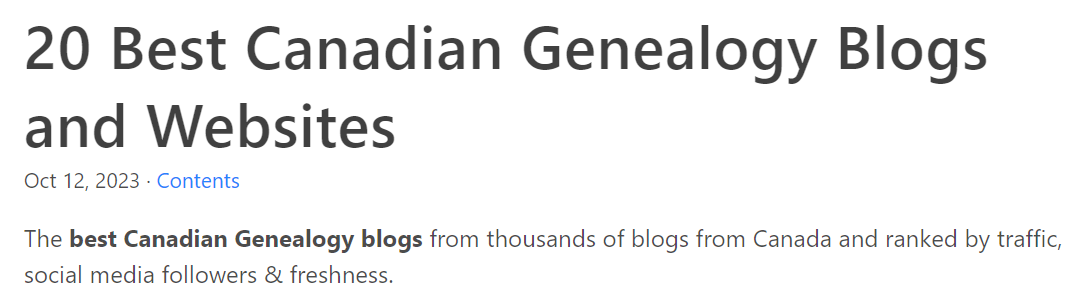
20 Best Canadian Genealogy Blogs and Websites

I received an email from Anuj, the Founder of Feedspot. They congratulated me on being selected by their panelists as one of the Top 20 Canadian Genealogy Blogs on the web. I was stunned, amazed, amused, and also honoured to be included with the others.
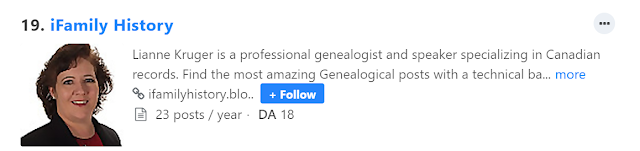
I am honoured to be placed as number 19 on this list.
19 iFamilyHistory
I didn't post this to brag but to share with you the link of the article so you will go check out the list. I also wanted to share the group that put this article together. 


Link to blog:    20 Best Canadian Genealogy Blogs and Websites.

Number one is Gail! If you are unfamiliar with her blog, you will enjoy the vast information on her blog. She posts almost everyday. Her main content is Canadian genealogy but she blogs about genealogy news all over the world. 

A few other friends' blogs made it on the list, along with some blogs I am unfamiliar with, though not for long! And thank you for this list of new reading material, Feedspot! 

Enjoy! 


Second post for hyperlinking

Cliff hanger resolved in this second part blog post. This is the continuation if the story is too long for one post. There is no limit in characters as too how long a post can be but it shouldn't be too long.

How did you get here from the previous blog post? Using a hyperlink.

Two ways to add a Hyperlink

Copy from a Browser
  1. Copy the URL from the address bar in your web browser [Google Chrome, Firefox, etc]. 
  2. Paste in the editing area where you want the hyperlink to appear. 
  3. If you don't like what appears, click Change.
  4. The window on the right appears. 
  5. Change the Text to display to what you would like
  6. The web address is filled in.
  7. Click the Open this link in a new window box.
  8. Click OK. 

Create a hyperlink
  1. Type a word or words that you would like to use for the hyperlink. Such as For More of the Story or Click here to continue
  2. Select the text you want as part of the hyperlink. All or part of step 1.
  3. Click on the word Link on the toolbar at the top. 
  4. The window above right appears. The same window as above instructions.
  5. The Text to display will be filled in with the text you selected.
  6. Add the web address 
  7. Click the Open this link in a new window box.
  8. Click OK. 

OGS Conference blog session

Hello  

I'm here at OGS talking with a great class about blogging using Blogger.

Steps to create and publish a post:
  1. Create a post
  2. Type in title
  3. Type in text 
  4. Click Preview
  5. Come back to this tab.
  6. Click Publish
Labels
Don't forget to add labels to help you and others find posts on a person, topic or place. 

Length of a Post
Posts are on one person one event one time. There might be a group of people at the event. But make each post about one thing. 
Make it short. It is not a novel. Not even a chapter of a novel. 

If the story you want to share is too long divide it into two posts. Add a link at the bottom which will automatically take them to the next post.

Add pictures!
  1. click on picture icon on toolbar at the top.
  2. Under Upload, click on Choose Files
  3. Find your file on your hard drive
  4. Make sure the photo(s) you want are outlined in blue. If they are not, click on them to select them.
  5. Add Selected.
  6. Photo is now in your post. Use the menu at the bottom to position it and change the size of the photo. 
Ideas on what to write?
Use Amy Johnson-Crow's 52 Ancestors in 52 Weeks. Get an email every week to remind you
https://www.amyjohnsoncrow.com/52-ancestors-in-52-weeks/


Need writing ideas check out Lynn Palermo's website The family history Writing Studio.
She also has emails sent out regularly.
https://www.familyhistorywritingstudio.com/
A to Z blogging icon


Need motivation?
In April each year join the A to Z blogging challenge. 


For more blogging ideas click here For the rest of the story...