Showing posts with label GoogleDrive. Show all posts

Google Drive storage

Google gives you 15 Gb of free storage.
The storage includes:
  • Drive files
  • Google Photos
  • Gmail
Storage Amounts
1. Open up Google Drive.

On the left-hand side of the main screen is a menu. 
At the bottom of the menu is the amount of memory you have used out of the 15 GB.
Such as: 
8 GB of 15 GB used
To find out how much you have used in the different areas
1. Move your mouse over the three bars or words "Upgrade storage"
    The following will appear.


Google Photos
Note the icons on the left of each item, specifically the Google Photos.

This icon is different from the other Google Photos. As you can see, these photos take up part of the 15Gb free storage.

If you store your photos under the icon below, you have unlimited space for your photos!.

Search for Google Photos for posts on the why and hows of using Google Photos.

Z is for Zip Extractor

This is the last of the A to Z challenge blog posts on how and why you would use Google Drive for genealogy and family history. Click on Google Drive Page for an index of all the related blogs.

If you need to send multiple files to a family member or they need to send them to you, it is easier to send them in a zipped file then separately and it is faster. When emailing photos, you are only allowed so many Megabytes and photos take some room. 3 or 4 photos is all you can do in one email. That can be a lot of emails.

If you combine the files into one file, by zipping them, it is will solve all the problems listed above.

If someone sends you a zipped file, you can extract the files from the zipped file in Google Drive.

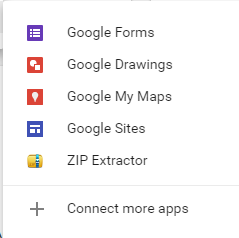
1. Click New.

2. Click More  >

3. Click Zipped Extractor.


4.  Click Authorize if this is the first time you are extracting files.


5. Drag and drop the Zipped file into the dotted area or choose from the two options on the screen.
    Click on Choose ZIP file from Computer, if the file is located on your computer's hard drive.
    Click on Choose ZIP file from Google Drive, if the file is located on Google Drive.

A to Z is done but there will be more Google Drive instructions in the future. Click on Google Drive under Labels for the list.


For more of the A to Z challenge posts on Google Drive
click the How to use Google Drive from A to Z 
located on the right under Pages.

Y is for YouTube


This post is part of the A to Z challenge explaining how and why you would use Google Drive in genealogy and family history.

Google purchased YouTube and I couldn't find something else more appropriate for A to Z challenge and Family History than YouTube.

YouTube is a great place to store your family's videos.
  • As a backup
  • To share with other family members
Steps for setup:
  1. Create your own channel. 
  2. Make it private so only those you give the channel to can see it. 
  3. Upload your videos.  
  4. Share the link with your family so they can enjoy watching and maybe even upload their own videos. 
More posts with instructions will be posted here. Click on the YouTube label on the left for a list of YouTube posts.


For more of the A to Z challenge posts on Google Drive
click the How to use Google Drive from A to Z 
located on the right under Pages.

U is for Upload

This post is part of the A to Z challenge explaining how and why you would use Google Drive in genealogy and family history.

Upload refers to the transfer of files from a computer to the web.
You would do this for your family history or genealogy for the following reasons
  • as a backup
  • to share with others
  • to have access to it where every you are and on whatever you computer you are on.
To transfer files from our computer to Google Drive we upload them.
1. Click New

2. Click File Upload or Folder Upload

3. Google now asked us what file. Find the file on your hard drive. 
    You can also drag and drop the file from File Explorer to Google Drive. 

4. A message appears in the bottom right-hand corner indicating the upload amount. Google Drive indicates when it is completed uploading. 

Your file is now ready to use and share.


For more of the A to Z challenge posts on Google Drive
click the How to use Google Drive from A to Z 
located on the right under Pages.

R is for Recent

This post is part of the A to Z challenge explaining how and why you would use Google Drive in genealogy and family history but can used related to any documents you want to share for a variety of reasons.

Google Drive has a menu item called Recent.

If you are working on a document or were recently working on a document, click on Recent to view that document. This is a quick way to find the document and continue working.

It could be any of the different types of document. Map, picture, document, slide document, etc.

This menu item shows in reverse chronological order the recent files you have been in, whether created or edited. Below shows sections titled Today, Earlier this week, etc.

1. Click on Recent.

2. Scroll down on the right to view all the Recent documents.


For more of the A to Z challenge posts on Google Drive
click the How to use Google Drive from A to Z 
located on the right under Pages.

I is for Information


i stands for information but if you move your mouse over the "i" it says View Details.

  1. Click on a file or folder. [single click]
  2. In the top right-hand corner of the screen is the "i" icon. Click on the "i" icon.
A panel of information appears on the right.
This information includes two tabs. Details and Activity.
The tab which is displayed is the one in blue text with a blue line underneath it.

Details tab
Type of item:  File or Folder

Folder List 
Where it is located: Which folder is it located in
Who the owner is:    you or someone who has shared
Modified:  Last time it was modified and who modified it
Opened:  Last time it was opened and who it was opened by
Created:  When it was originated created
Add a description:
This is a great place for notes to remind you what the file or folder is for.

A picture of the item may appear at the top of the detail list.
Under the picture, if there is one,
will be icons of the people who can also see and/or edit the document

File List
  • Picture of the document
  • People I am sharing the file with
  • Type
  • Size
  • Storage used
  • Location
  • Owner
  • Modified
  • Opened 
  • Created 
  • Add a Description 
  • Sharing privileges 

Activity tab
A list of activities in chronological order will appear. The latest activity will appear at the top of the list. At the bottom of the list will be the first activity for that file or folder. It will be the creation or upload information of the file or folder.

For folders it will list when files were added, deleted or moved to or within the folder.
For files, it will list when created and when you made changes to the file.


For more of the A to Z challenge posts on Google Drive
click the How to use Google Drive from A to Z 
located on the right under Pages.